Color Picker | The Complete Guide to Selecting, Understanding and Applying Color
Color Picker: The Complete Guide to Selecting, Understanding and Applying Color
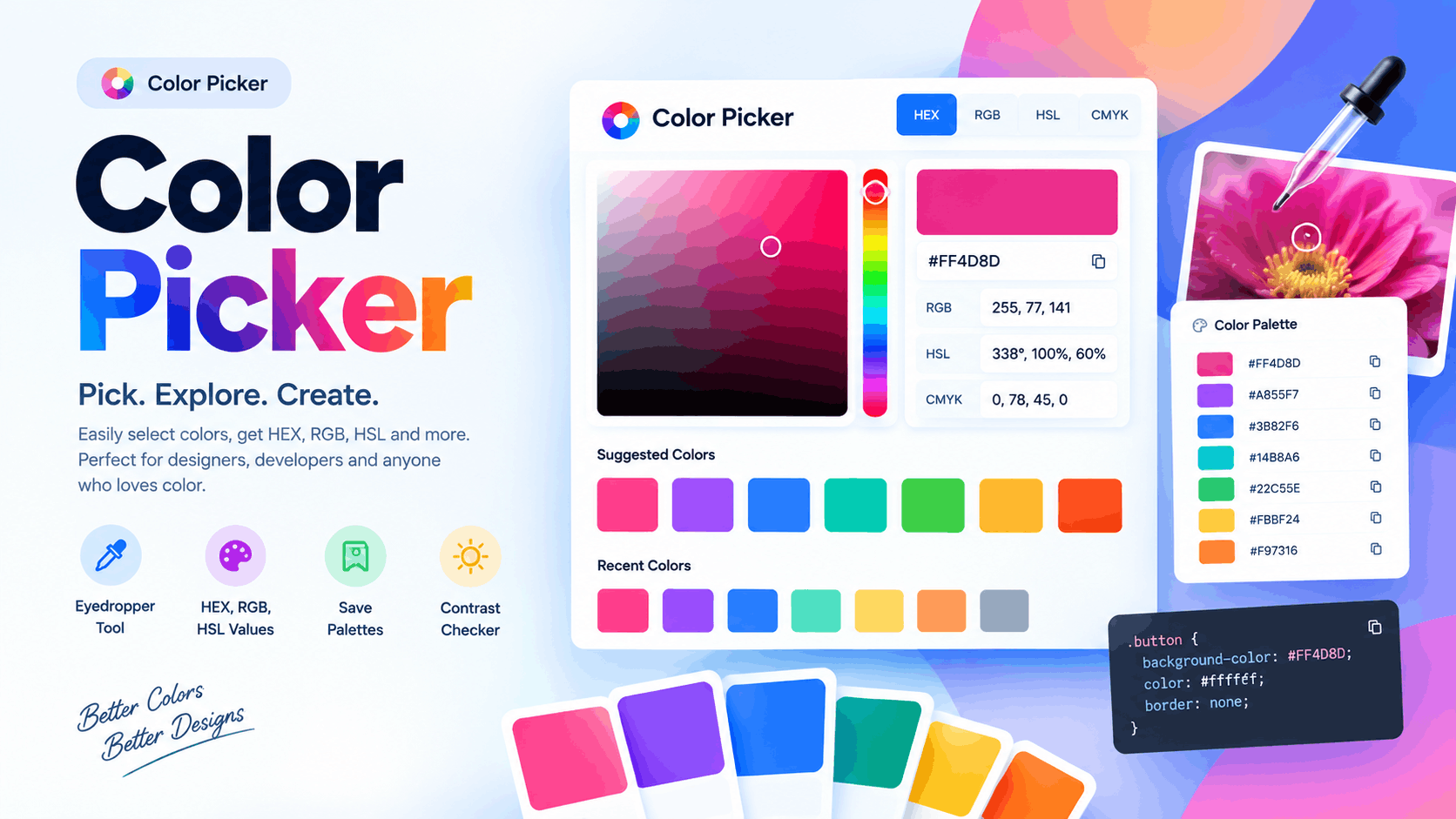
A Color Picker is a tool that allows you to select, identify and duplicate exact colors for websites, graphics, branding, applications and the digital content. Rather than stumble upon a color by just visualizing it, a color selection tool can give exact values like hex, rgb, hsl and more.
Precision is important to designers and developers. A slight variation in color can transform the look of a button, logo, background, product image or brand element. By using the right workflow, you can select a color from any picture, change it, copy its color code, check the contrast, and re-use the same color throughout a project. You can try a practical Color Picker tool to select, identify, and copy exact color values instantly.
What is a Color Picker?
A Color Picker is a tool used to identify a particular color from a visual spectrum, palette, image or digital interface. You can choose colours by hand or pick up a colour from an image or screen using an eyedropper depending on the tool that is being used.
The majority of digital color aids offer one or more technical values such as:
- HEX color code
- RGB value
- HSL value
- HSV or HSB value
- CMYK value
- Control the transparency or alpha value
The visual preview gives you an idea of the color, and the numerical values enable you to repeat the color exactly.
An exact HEX value, for instance, instead of telling a developer to use the color "dark blue." This eliminates assumptions and greatly simplifies design handoff.
What is the use of a Color Picker?
A digital color selector is a device that displays colors in a mathematical color model. The interface might display a spectrum of hues, a saturation and lightness control, a color field, sliders or a numerical input box.
Once a point is picked the software returns the color values.
For example, one color might be encoded in a number of different ways:
| Format | Example | Common purpose |
|---|---|---|
| HEX | #3366FF | Websites and CSS |
| RGB | rgb(51, 102, 255) | Digital interfaces |
| HSL | hsl(225, 100%, 60%) | Easy color adjustment |
| CMYK | C/M/Y/K values | Print workflows |
| HSV | Hue, saturation, value | Visual color selection |
Both formats describe color in different ways, and may represent the same color in spaces that they share.
Color Selection (HEX, RGB, and HSL)
HEX Colors
One of the most popular file formats in web design is HEX. It is a hexadecimal representation of rgb channel values.
Each 6 character HEX value has information for red, green and blue. Due to its compactness and ease to copy, HEX is commonly used in CSS and design systems.
RGB Colors
RGB is a color system using red, green and blue channels to represent a color. It's particularly helpful in digital screen usage and web development.
When transparency is needed, RGB can also have an alpha channel.
HSL Colors
HSL is an acronym for hue, saturation and lightness. This format is appealing to many designers because each of the components is visually easily understood.
For instance, you can maintain the same color while adding lightness to make a lighter shade of the same color.
How to Extract a Specific Color from an Image
A tool that is very helpful in a Color Picker is image sampling.
If you have a picture, logo, an image for a product or an existing website design and you want to match one of the colors, then you have come to the right place. Don't guess, use an eyedropper or image sampling feature.
The simple process is:
- Upload the image or open it to edit.
- Turn on the colour sampling tool.
- Hover over the area you wish to select.
- Select the color.
- Click on the HEX or RGB value to copy.
- Test the colour in your design.
- Save it into your palette, if necessary.
Taking samples from multiple spots can also assist you in determining the primary, secondary, and accent colors in an image.
Color Picker for Website Design
Website designers have to use color selection tools at all stages of the design process. Colors can be used for different parts of a single project such as navigation, buttons, headings, backgrounds, cards, forms, links, icons, and interactive states.
The following are samples of items that could be included in a structured palette:
- Primary brand color
- Secondary brand color
- Accent color
- Main background
- Secondary background
- Heading color
- Body text color
- Border color
- Hover color
- Focus color
- Success color
- Warning color
- Error color
Designers can pick some basic colours and produce controlled variations instead of picking each colour individually.
This will result in a cohesive user experience and seamless updates.
Color Picker for UI and UX Design
The colors used are an important part of the visual hierarchy. A good interface provides clarity on what the user needs to know without overwhelming him/her.
For instance, a main action button may be accented with a vibrant color, and secondary action buttons might be in more subdued shades. Neutral colours can help to define sections, and neutral colours can be used to add space to the content.
Color should be used to enhance the interface, though, not be the interface. Typography, spacing, layout, labels, icons and interaction states are also elements of good UX.
Color Picker for Branding
There are numerous channels in which brand colors must be consistent. You can use the same name, logo, colors, and other design elements throughout all your advertising, social media, packaging, presentations, website and print materials.
You can use a colour selection tool to find out which colours are already used in the brand artwork. Upon choosing, record the exact value.
A professional brand colour record should contain:
- Color name
- HEX value
- RGB value
- HSL value
- The CMYK value is a print value.
- Recommended background
- Text usage
- Accent usage
- The difference between light and dark changes.
That gives a solid reference to future design.
Add Color Picker to WordPress and Elementor
A WordPress site may have more than one page featuring the same colors. Color Systems are reusable and can be created by using Elementor and other page builders.
For instance, one chosen brand color can be used throughout for:
- Header buttons
- Call-to-action sections
- Navigation links
- Contact forms
- Icons
- Product buttons
- Hover effects
It's much easier to change the visual identity of a global color if it's already well documented.
This can be applied to WooCommerce stores. It's possible to have a consistent colour system for product cards, prices, purchase buttons, sale badges, checkout elements and notifications.
Color Picker for Ecommerce Websites
The careful use of color is important in ecommerce design because the emphasis can influence the shoppers' navigation of the store.
One color could be used for "buy" calls, another for "information" calls, and different status colors for "success," "warning," and "error" calls on a product website.
The purpose is not for all objects to be illuminated. Instead, try to limit the strong colors to significant actions and follow them with neutral shades for supporting content.
A picker aids designers in selecting colors from the images of products or a brand's already established palette to create a matching brand palette for their store.
Color Picker and Accessibility
The selection of color should never be a task of a user without checking its accessibility.
One color might be a perfect match for one type of background, but not work for another. So, always test significant foreground and background combinations prior to website publishing.
Pay attention to:
- Body text
- Headings
- Links
- Buttons
- Form fields
- Icons
- Focus indicators
- Status messages
Don't use color as the only way to communicate significant information. If a form error, e.g., a red border, is presented, it should also contain a clear message or icon.
Accessibility is not a finishing touch! The background information should be taken into account when choosing and applying colours.
Color Picker vs Color Mixer vs Color Palette Generator
These tools have similar but distinct functions.
| Tool | Main function | Typical use |
|---|---|---|
| Color Picker | Chooses a color that is already on the computer screen | Taking and recognizing color samples |
| Color Mixer | Mixes colors or makes changes in colors | Creating new shades |
| Color Palette Generator | Creates a group of related colors | Building palettes |
| Contrast Checker | Measures color contrast | Accessibility testing |
| Color Converter | Converts color formats | Design and development |
Many of these tools can be used in combination in a professional workflow.
For instance, if you select a colour from a logo, you can use a mixer to create variations of that colour, arrange them into a colour palette and then test the combinations for accessibility.
The Color Picker Tool and the Eyedropper Tool
They are frequently used in tandem, and each has slightly different uses.
A color picker might also offer a full color interface for picking and editing colors. The eyedropper typically is used to pick a color from an image, screen or visual element.
The two features are integrated in many modern design applications.
The difference is the task: If you are sure what color you want to adjust, a picker will offer granular controls. If looking for a color that is already in the file, an eyedropper is typically faster.
How to Select the Correct Color Picker
A useful tool is one that does not complicate the process while providing accurate information.
Find the following characteristics:
- HEX input and output
- RGB values
- HSL controls
- Eyedropper, Image sampling
- Color preview
- Copy-to-clipboard functionality
- Effective shading and tinting options.
- Transparency control
- Palette support
- Contrast testing
- Clear color labels
Modern color formats support may also be useful in professional web work.
The selection will depend on the job you need to complete. For simple selection, a simple picker might suffice, but for designers developing complete design systems, more sophisticated controls may be necessary.
Common Color Selection Mistakes
An unclear color strategy is not something that a good picker can fix. Steer clear of these typical pitfalls:
- Making color selections without purpose.
- Overuse of bright colours.
- Ignoring text contrast.
- Taking a color sample from a poor quality image.
- Assuming screen colour will print the same colour.
- Ignore hover/focus states.
- Utilizing various shades for the similar UI position.
- Not recording the chosen colours.
- Using only sight to determine, judge, or recognize.
- Changing the brand colours without updating the whole system.
A well-defined procedure can avoid these problems and ensure uniformity of the final design.
Professional Color Selection Workflow
A dependable workflow can be carried out in a couple of steps.
- Define the purpose
Determine if color is to be used in branding, text, background, buttons, illustrations, products or other applications. - Find the source
Choose from existing brand colours, sample an image or create a new palette. - Select the precise colour
To select a desired colour and record the number of it, use the PICKER. - Record the color
Save in the HEX, RGB, HSL or as a required format. - Create supporting colors
Apply color variations for hover states, backgrounds, borders and other elements. - Test contrast
Test key combinations prior to use in production. - Apply consistently
Include permitted colors in your website, design system, CSS variables or page builder. - Write the final system of equations.
Maintain a central record for future designs to use the same values.
This process enables easy color selection to become a repeatable design workflow.
Frequently Asked Questions about Color Picker
What does Color Picker do?
A Color Picker can be used to pick, identify, alter and copy colors exactly. It's widely adopted for websites, graphic design, branding, UI/UX, digital art, and marketing material.
May I choose a colour from a picture?
Yes. Colors can be recognized directly from photographs, graphics, screenshots and logos with tools equipped with an eyedropper or image sampling feature.
Which is the best colour format for websites?
There are many reasons why HEX is commonly used in CSS: First, it is compact, and second, it is easy to copy. RGB and HSL are also helpful when it comes to development and design processes.
Can a Color Picker form a palette of colors?
There are certain tools that can save selected colors or create colors based on the selected ones. However, a dedicated palette generator may provide more advanced palette-building features.
Why are the same colours different on different screens?
The visual appearance can be influenced by the display technology, brightness, color profiles, display calibration, viewing conditions, etc. A numerical colour value is better than a visual comparison.
Can I use a Colour Picker with logo design?
Yes. It can read colors from an existing logo in order to identify them exactly and also assist the designers to record the exact value needed to ensure the consistency of the brand.
Does colour play a role in accessibility for websites?
Yes. Choosing the correct colours is just the beginning. Designers should also try foreground/background combinations, consider the contrast of any foreground elements with background elements and not rely entirely on color to convey information.
Conclusion
Of course, if you simply need to select color on website, a Color Picker is one of the most useful online tools. Instead of eyeballing, with the right online tool you can get accurate information from designer, developer, or even content writer about the color you need to, use them consistently, and ensure everyone knows their technical values.
From sampling, to matching, designing WordPress site, Elementor design, Woo Commerce shop, or a whole UI, precise color picking ensures consistency.
Don't stop at beautiful color – use that shade everywhere, note it down, explore some variations, do some accessibility testing, and then use those preferred shades throughout your pages and graphics.
When you document your choices through a color palette, your website and graphics will be much more cohesive and professional looking, and easier to maintain.
Ready to start picking colors with precision? Try this Color Picker to select colors from images, copy HEX and RGB values, and build a consistent palette for your next project.