
Drop CSV files here
Supports CSV files with comma, tab, or semicolon delimiters
CSV to PDF | Convert CSV Files to PDF Online for Free
CSV to PDF : you need a reliable tool that turns spreadsheet data into a clean document. A CSV PDF converter lets you pull data from CSV files and change them into PDFs for printing, sharing, and many other uses.
Many professionals and organizations use these files regularly. Companies, developers, accountants, students, researchers, and office employees all work with this format daily.
CSV files are good for storing data, but sharing them can be a hassle. Changing them to PDF solves this problem by giving you a format that anyone can open and read.
A conversion tool makes sharing information easy. It makes sure the output looks the same on any computer. Users can create invoices, reports, customer lists, and sales data in seconds without needing spreadsheet software.
This method works well for corporations, government agencies, schools, businesses, and anyone who needs to exchange table data.
This guide covers everything about converting files. You will learn definitions, benefits, step-by-step instructions, best practices, and answers to common questions.
How to Convert CSV to PDF?
Simply put, CSV to PDF conversion changes a Comma Separated Values file into a Portable Document Format file. This process uses software to change the content from one format to another.
PDF documents keep their look no matter which computer or program opens them. This consistency makes PDFs perfect for sharing.
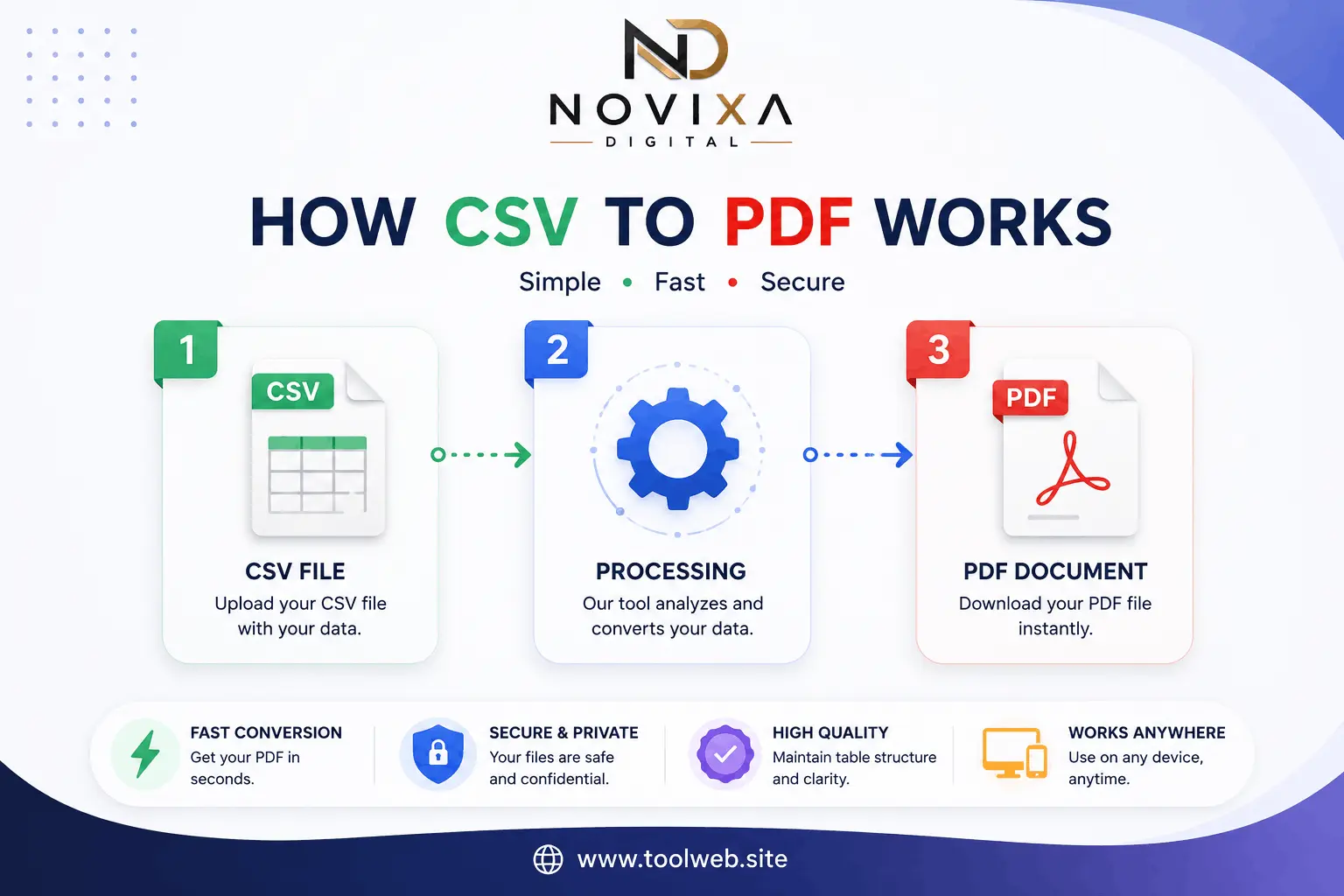
Online converters are easy to use and need no prior experience. Usually, you upload a CSV file, click convert, and wait a few seconds for the process to finish.
What Makes CSV Files Good for PDF Conversion
A CSV (Comma-Separated Values) file is a text-based format that stores table data. These files are popular because they are simple to create and turn into spreadsheets. CSV files are usually smaller than other database formats.
However, CSV files have a big downside. They are not good for direct sharing or printing. This is why many people choose to change them to PDF for better organization and readability.
Why Converting CSV to PDF Makes Sense
Several good reasons push people to do this conversion. For example, PDFs are much easier to read than raw CSV text. Also, you can show data as polished reports and documents.
Plus, people can open PDFs right away without special software. PDFs also look the same on any device or operating system. At the same time, PDFs print cleanly without extra reformatting.
Also, many organizations keep CSV data as PDFs for safe storage and long-term keeping.
Who Benefits from This Tool
This tool helps many different users. For instance, business professionals use it to create reports. Accountants share financial statements with clients using this tool. In the same way, students and teachers convert grades and schedules.
Administrative staff make invoices easily. Developers work with data exports. Database managers convert exports. Marketers study campaign data. Sales teams prepare customer lists. So, anyone who needs PDF files from CSV data can benefit.
Key Features of a Good Converter
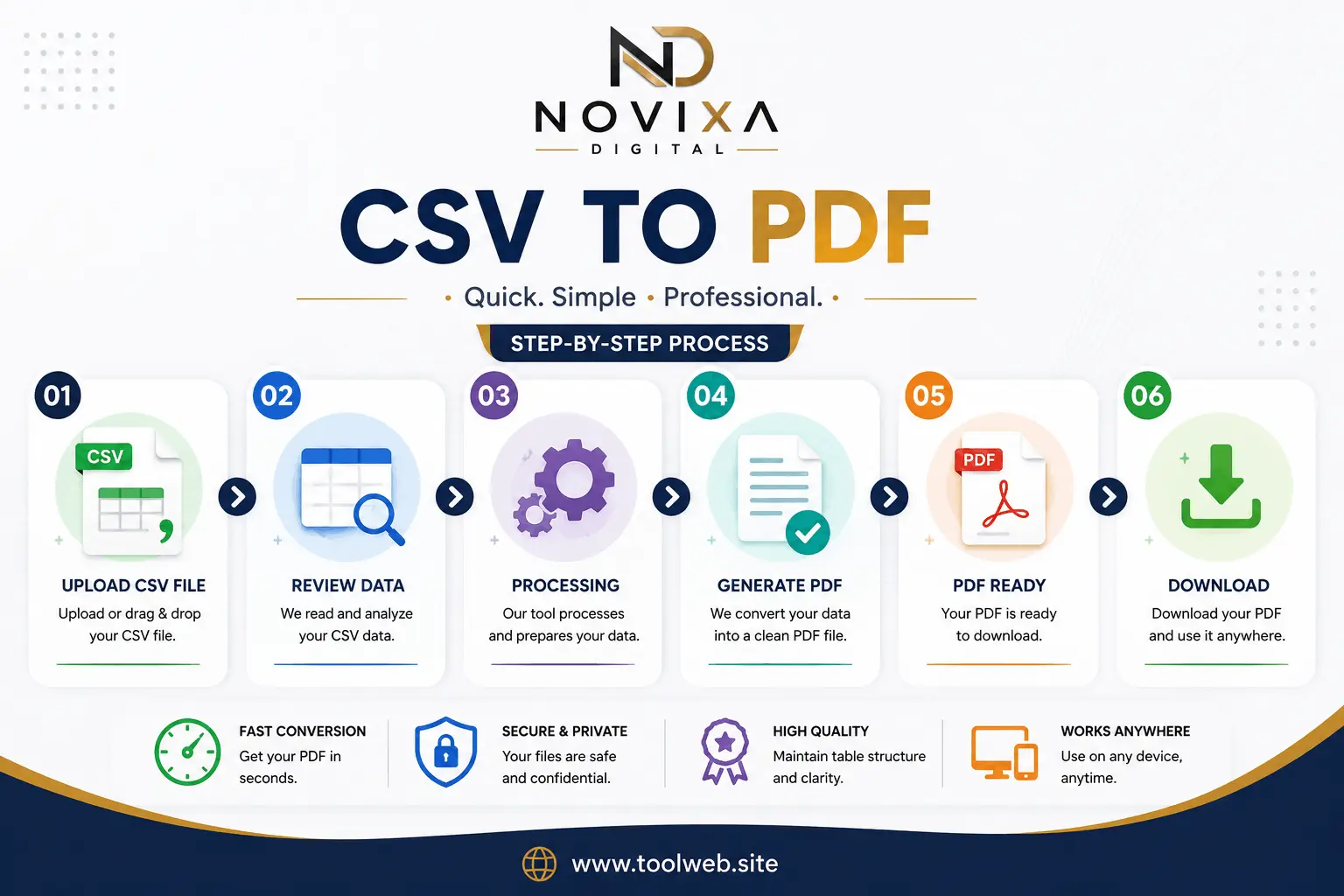
Good converters typically offer fast processing speeds. They also need no software installation. Plus, they are browser-based and give high-quality output. They also work across many platforms and support standard CSV formats. Finally, they provide easy file download options.
Supported File Formats
| Feature | CSV to PDF Converter |
|---|---|
| Input | CSV (.csv) |
| Output | PDF (.pdf) |
How the CSV to PDF Conversion Process Works
Converting files involves just a few simple steps. First, you pick and upload your CSV file to the converter. Next, the converter reads your data and makes a formatted PDF document. Finally, you save the converted file to your device.
That is all there is to it. The process is simple and easy to use.
Benefits of Using a CSV to PDF Converter
This software is especially useful for business users who work with financial data, invoices, and reports often. For instance, PDF files open on any device, making them great for sharing with clients and partners.
You can also turn raw tables into polished, presentation-ready reports. PDFs look the same across all systems and software. Also, you can print reports directly without reformatting. Some people also use conversion as part of their data security process.
Step-by-Step Guide to Convert CSV to PDF
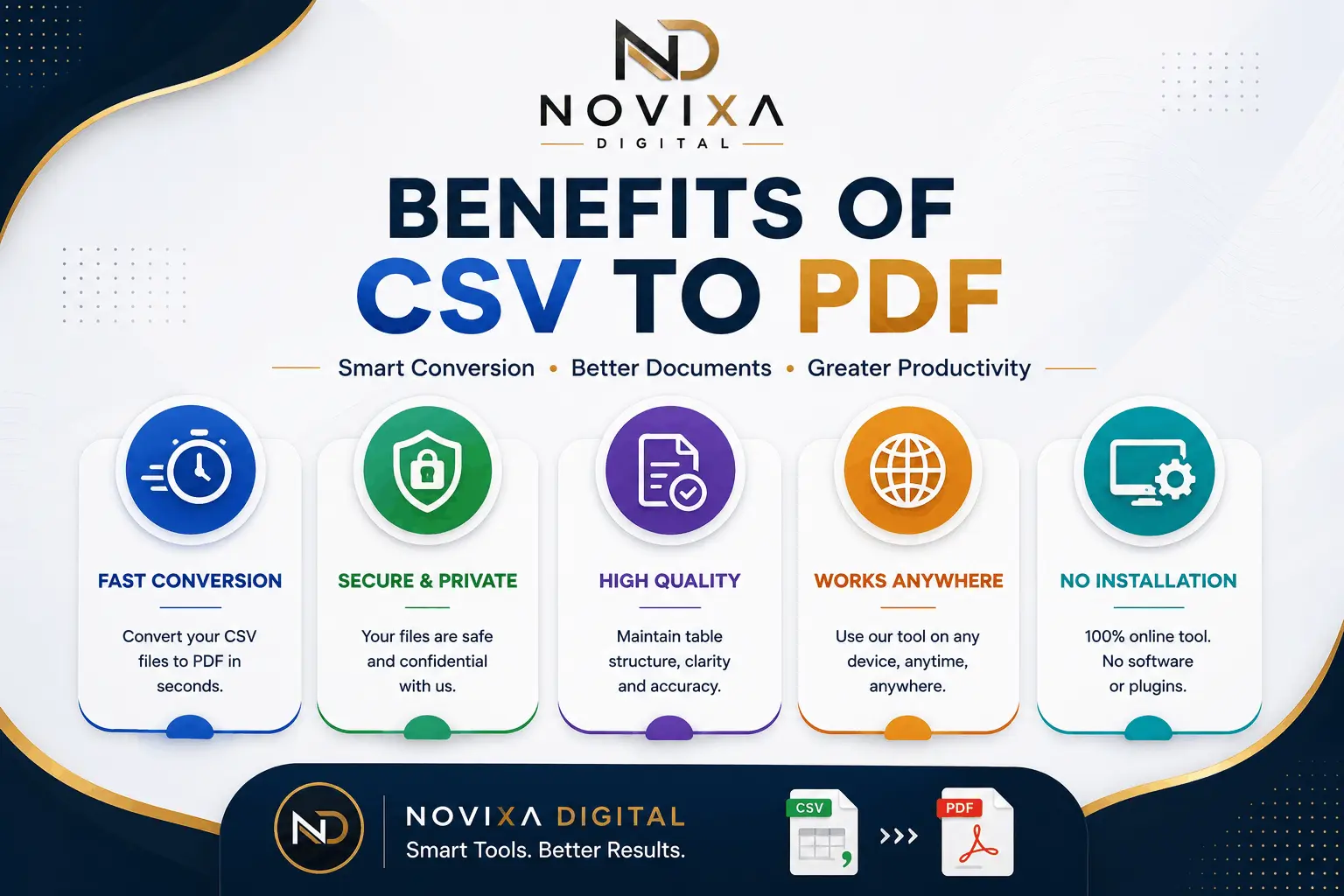
Follow these steps to convert your files. First, choose the CSV file you want to convert. Then, upload the file to the converter. After that, check that your data shows correctly. Next, click the convert button and wait for processing. Finally, save your converted PDF file.
Common Uses for CSV to PDF Conversion
People convert their files for many different reasons. For example, businesses create invoices, sales reports, inventory lists, and financial statements. Accountants share expenses, payroll data, and invoices with clients.
Teachers and students print grades, attendance records, and timetables. Data analysts make professional reports from analysis exports. Developers create documents from data exports.
Other Common Scenarios
Government agencies produce official reports and documents. Healthcare providers share patient data and medical records safely. Researchers present research findings and statistics clearly. Human resources departments share employee records and payroll information.
Best Practices for Good Quality
Follow these tips for the best results. First, make sure your CSV file has no errors. Then, check that headers show correctly in the PDF. Also, remove extra blank rows for a cleaner output. Also, arrange columns properly for accurate PDF mapping.
Always check the final PDF before sending it. Keep your CSV files for future changes. Use clear names for easy identification. Finally, always convert the latest version of your file.
Common Mistakes to Avoid
Watch out for these common errors. For example, check that your CSV files are not damaged. Make sure your data is structured well. Always include clear column headers. Double-check everything before sharing. Always work with the most current files.
How Fast Is Conversion?
Processing time depends on file size, computer performance, and internet speed. Small files convert almost instantly. However, larger files may take a bit longer.
Browser Support
Online converters work with all modern browsers. These include Chrome, Firefox, Edge, Opera, and Safari. For the best performance, use an up-to-date browser.
Using on Mobile and Desktop
You can use converters from any device. This includes Android and iOS phones, tablets, Windows PCs, and Mac computers.
Accessibility Features
Most tools are easy to use and accessible. Some include screen reader support and keyboard shortcuts for people with disabilities.
CSV to PDF vs Traditional Spreadsheet Software
| Feature | CSV to PDF Converter | Traditional Spreadsheet Software |
|---|---|---|
| Installation Required | No | May be required |
| Easy Sharing | Easy | Depends on recipient |
| Printing | Easy | Easy |
| Cross-Platform Compatibility | Easy | Depends on software |
| Professional Appearance | Easy | Requires manual formatting |
| Quick Conversion | Easy | Usually needs extra steps |
Pros and Cons
Pros
- Easy, quick, and handy conversion
- Simple printing and sharing
- Professional PDF reports from CSV data
- No software to install
Cons
- The final look depends on CSV structure
- Large files may take longer to process
- Fewer formatting options than desktop software
- Conversion is only one step in document handling
Privacy and Security in CSV to PDF Conversion
Pick trusted converters and read their privacy policies. Make sure your data is not stored on servers longer than needed. For sensitive information, use tools that process files locally in your browser.
Related PDF Tools
Frequently Asked Questions (FAQs)
What is CSV to PDF?
It means changing a comma separated value file into a portable document format file. This makes it easy to view, print, and save.
Is conversion free?
Many online converters offer free services. However, some may charge for extra features.
Will conversion harm my data?
No. The conversion only changes the file format. Your data stays the same.
Is there a maximum file size?
It depends on the tool. Most converters can handle large files.
Can I convert on my phone?
Yes. You can convert files on your phone using a browser.
Do I need Excel?
No. You don’t need Excel or any other spreadsheet software.
Is it secure?
Security depends on the converter you choose. For sensitive data, check the privacy policy.
Why should I convert?
Conversion lets you print, share, and present data in PDF format.
Does it affect formatting?
The conversion keeps the table structure. However, the final look depends on the tool.
Can I print the PDF?
Yes. Printing is one of the main reasons people convert files.
Which browsers work?
Most tools work with Chrome, Firefox, Edge, Safari, and Opera.
Can I use it for business?
Yes. You can use it for invoices, reports, inventory, and customer data.
Does it lower quality?
No. The PDF file keeps the same quality as the original.
Who can use it?
Anyone can use it. This includes students, teachers, accountants, programmers, and researchers.
Can I convert several files?
Some converters allow multiple files. Others only allow one at a time.
Conclusion
Converting CSV files to PDF is a great way to create documents that are easy to print and share. Whether you work with data, research, business reports, or customer information, a converter can help you get the best results.
Now that you know about CSV to PDF, you can start making beautiful PDF files from your spreadsheets. Just choose the right tool and begin converting.
Call to Action
Ready to convert your CSV files? Use our tool to change CSV files into high-quality PDF documents online and securely in your browser.