
Drop your .html files here
Supports HTML files with embedded CSS and images
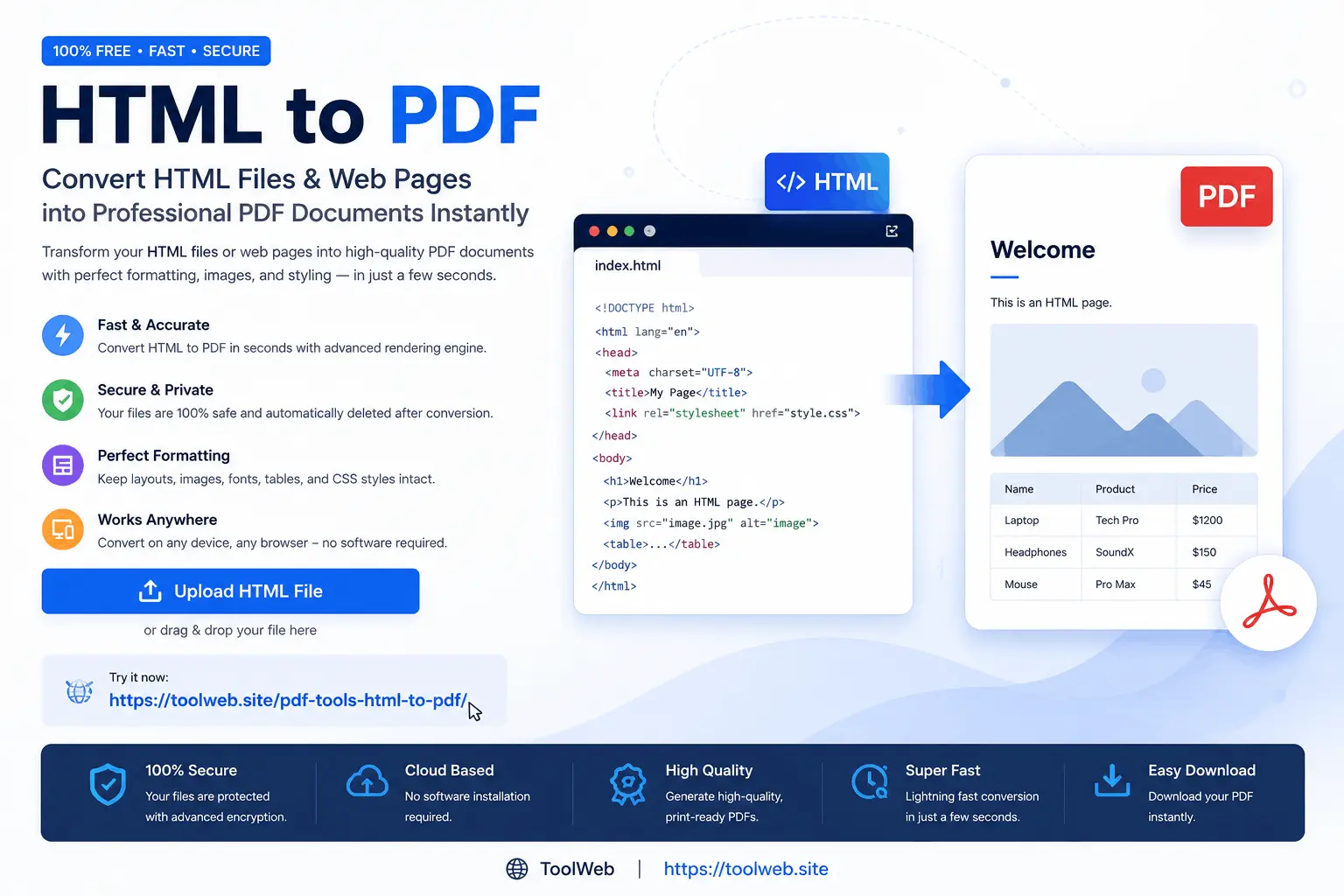
This free online converter assists with converting HTML files or web pages into PDF documents. It attempts to preserve text, graphics, layout, tables, and styling as much as possible.
You can use it for publishing or sharing HTML contents through other applications. In the following guide, HTML to PDF – The Ultimate Guide, we will examine several important aspects:
- This handy software helps you save web pages as PDF files.
- It supports converting HTML files and URLs in an easy-to-use manner.
- Useful settings help preserve text, graphics, tables, and styling during conversion.
- The tool is suitable for developers, students, businesses, and designers.
You can use it to print, share, or view contents on your computer. It also works without requiring a specific HTML reader.
What Is HTML to PDF?
This converter transforms HTML files and webpages into PDF files. It retains almost all elements from the original source. The resulting PDF covers text, graphics, tables, headings, paragraphs, hyperlinks, and colors.
Browsers typically open HTML files. However, HTML may not support some features consistently across different browsers. PDF is a versatile and dependable format. It maintains layout regardless of the viewing application.
Many companies convert webpages to PDF before sending reports, emails, or printouts. You can also convert invoices, contracts, and manuals for easier management and sharing.
Why Convert HTML to PDF?
This conversion is extremely useful for personal and business purposes. Here are some key reasons:
For Business Report Sharing
Companies use HTML for web development and design. They present reports, invoices, proposals, and contracts. Converting these to PDF makes them easy to email and manage.
For Better Printing
Webpages are designed for screens, not printers. PDF documents print directly with consistent layout and size. By converting to PDF, you ensure the printed copy matches the original.
For Easy Distribution
Recipients may only need to view or print the content. Sharing as a PDF is sensible because PDF viewers are widely available. No additional software is required.
For Better Archiving
Businesses and institutions store reports, invoices, and contracts in PDF format. HTML files are less convenient for digital archiving. The converter lets you transform HTML into a more archival-friendly PDF.
Key Features of a Good Converter
Most conversion tools come with an extensive list of features. These make the process faster and easier. Some of the best features include:
- Fast conversion speed
- High-resolution output
- Browser-based operation (no install)
- CSS styling support
- Table, graphics, and image preservation
- Print-friendly layouts
- Mobile-friendly interface
- Cross-platform compatibility
- Quick PDF download
- Drag-and-drop file upload
- Simple and user-friendly interface
Who Should Use an HTML to PDF Converter?
Anyone can use this tool to transform HTML pages into PDF. Here are some major user groups:
- Web developers – create reports, invoices, and downloadable content.
- Businesses – manage invoices, employee records, contracts, and proposals.
- Designers – share brochures, certificates, and graphics-rich content.
- Students – submit assignments, notes, and tutorials in a standard format.
- Teachers – distribute worksheets, lesson plans, and educational materials.
- Office workers – handle reports, schedules, and records efficiently.
Supported File Formats
The tool supports a wide range of input and output formats. Here is a quick overview:
| Category | Formats |
|---|---|
| Supported Input Formats | HTML, HTM, Web pages (URLs), CSS (for styling), JavaScript (depends on the converter) |
| Supported Output Format | PDF (Portable Document Format) |
Many converters also support embedded fonts, responsive design, and multi-page footers.
Top Benefits of Using This Converter
This tool offers several advantages over other methods. Let’s look at the main benefits:
Maintains Page Layout
The major advantage is layout preservation. HTML files contain headings, paragraphs, tables, graphics, and colors. A good converter retains these visual elements. The resulting PDF looks very similar to the original webpage.
Lets You Share Files Easily
PDFs do not require a browser to open. Anyone with a PDF viewer can access them. This makes sharing information simple and universal. It is especially good for business reporting.
Creates Print-Friendly Documents
Printing directly from a browser can be tricky. Page dimensions often do not match. A converted PDF has consistent size and layout. This makes it perfect for printing invoices, reports, and certificates.
Works Across Different Devices
PDF files are compatible with Windows, Mac, Linux, Android, and iOS. You can share and view them on any device. Unlike HTML, which needs a browser, PDFs work on all operating systems with standard viewers.
Helps Create Professional Documents
Many businesses develop reports and contracts in HTML. They then convert them to PDF for formal use. The converter turns HTML into professional-looking documents suitable for any business context.
How to Convert HTML to PDF
Follow these four simple steps to get your PDF:
Start by uploading the HTML file you want to convert. Some converters also allow you to input a URL. This lets you convert web pages directly. Make sure your tool supports the input format you need.
The converter parses your HTML file. This ensures it is usable for the conversion process. The processing time depends on file complexity. You’ll see a confirmation when parsing is complete.
After processing, the tool generates the PDF. It retains headings, paragraphs, tables, images, and colors. Some tools even let you adjust page layout before generation.
Finally, download your PDF to your computer or mobile device. It’s ready for sharing, printing, or archiving.
Real-World Examples and Use Cases
This conversion is used across various industries. Here are some practical examples:
- Business reports – Companies design reports in HTML and convert to PDF for record-keeping.
- Invoices – Accounting systems generate HTML invoices and export them as PDFs for printing.
- Contracts – Organizations create agreements in HTML, then convert to PDF for signing and processing.
- Educational notes – Teachers and students save assignments as PDFs for easy submission and printing.
- Technical documentation – Software firms export API guides and release notes to PDF.
- Marketing materials – Brochures, newsletters, and certificates convert easily to PDF for distribution.
HTML to PDF Best Practices
Follow these best practices for the best results:
- Use valid HTML. Invalid code can lead to poor PDF output.
- Apply print-friendly CSS to ensure a nice layout.
- Check that all images are visible and not broken.
- Set your preferred page size before conversion.
- Always preview the final PDF before sharing or printing.
Common Mistakes to Avoid
Avoid these pitfalls to ensure a smooth conversion:
- Using HTML with broken images or CSS can cause undesirable results.
- Forgetting to use print CSS styles may affect the layout.
- Large images can unnecessarily increase file size.
- Not using responsive design might break the layout on different screens.
- Skipping the preview step may lead to unexpected formatting errors.
Browser Compatibility
Most online converters work well with:
- Google Chrome
- Microsoft Edge
- Mozilla Firefox
- Safari
- Opera
Using an updated browser typically gives better performance and compatibility.
Mobile Compatibility
Many browser-based converters also work on mobile devices:
- Android phones and tablets
- iPhones and iPads
This lets you convert HTML files on the go.
Privacy and Security
Privacy matters when uploading files. Always check the converter’s privacy policy. Ensure it deletes uploaded files after processing. Avoid tools that store or share your data.
HTML to PDF vs HTML Files Comparison
Choosing between HTML and PDF depends on your purpose. HTML works well for browser viewing. PDF is better for printing and sharing. The table below highlights the key differences.
| Feature | HTML to PDF | HTML File |
|---|---|---|
| Easy to Share | ✅ Yes | ✅ Yes, but browser required |
| Professional Printing | ✅ Excellent | ❌ Depends on browser |
| Consistent Layout | ✅ Excellent | ❌ May vary on browser |
| Editable | ❌ No | ✅ Yes |
| Cross Platform Compatibility | ✅ Excellent | ❌ Browser dependent |
| Offline | ✅ Yes | ❌ Limited |
| Great for Reports | ✅ Excellent | ✅ Good |
| Professional Business Docs | ✅ Excellent | ✅ Good |
| Suitable for Archiving | ✅ Excellent | ❌ Limited |
| Great for Web Development | ❌ No | ✅ Yes |
PDF is ideal for invoices, reports, manuals, contracts, brochures, and certificates.
HTML to PDF Pros & Cons
Consider these pros and cons before converting your files:
✅ Pros
- Preserves document layout
- Creates professional-looking documents
- Easy to share via email
- Excellent for printing
- Works on any operating system
- Great for archiving
- No browser needed to view
- Ideal for reports and invoices
- Widely supported by PDF viewers
❌ Cons
- Some interactive elements may not be captured
- JavaScript-heavy sites may require extra processing
- Dynamic content can give inconsistent results
- Large HTML files take longer to process
- Different converters offer slightly different features
FAQ
What is HTML to PDF?
It converts HTML files or web pages into PDF documents while preserving formatting.
Is HTML to PDF free?
Many online services offer free conversion. Premium options may also be available.
Can I convert a web page to PDF?
Yes. You can use a converter to turn any web URL into a PDF document.
Does HTML to PDF support CSS?
Yes, most modern converters support CSS formatting. The accuracy depends on the specific tool.
Can I convert HTML to PDF on my phone?
Yes. Browser-based converters work perfectly on Android and iOS devices.
Do I need to install any software?
No. Most online converters work directly in your browser without any installation.
Does HTML to PDF support images?
Yes, images are embedded in the final PDF. Broken images may not display correctly.
Can businesses use HTML to PDF?
Absolutely. Businesses use it for invoices, quotes, contracts, and reports.
Is HTML to PDF suitable for developers?
Yes. Developers use it to generate documentation, invoices, and reports from HTML templates.
Does HTML to PDF support tables?
Yes, most converters support tables and their formatting.
Can I print the converted document?
Yes. PDF files are designed for easy and reliable printing.
Does HTML to PDF work offline?
Most online tools require internet. Some desktop applications work offline.
Why should I convert HTML to PDF?
It makes sharing, printing, and archiving much more convenient.
Is HTML to PDF useful for students?
Yes. Students can submit assignments and share notes easily in PDF format.
Can I email the converted file?
Yes. PDFs are a universally supported format for email attachments.
Conclusion
This free online tool lets you convert HTML files to PDF quickly and easily. You can generate invoices, reports, business contracts, educational materials, and much more. The PDF format is widely supported. Recipients do not need a special browser or viewer.
Almost everyone can open a PDF, regardless of their device or operating system. The converter supports various features and produces high-quality results. It is a great choice for business documents, web pages, and personal files.
Ready to Convert?
Try our online conversion tool today. Simply upload your HTML file or paste a web link. Follow the easy steps and enjoy a high-quality PDF. Our tool saves both time and effort.