Dark Mode Color Palette | 12 Ideas With HEX Codes
Dark mode has become a popular design choice for websites, mobile applications, dashboards, and digital products. A well-designed dark interface can feel modern, comfortable, and visually distinctive. However, creating a good dark theme involves more than just swapping a white background for a black one.
The right dark mode color palette combines background shades, readable text, subtle borders, surface colors, and carefully selected accent colors. These elements work together to create a cohesive visual experience without making the interface feel too dark, flat, or difficult to navigate.
Whether you are designing a business website, an e-commerce store, a portfolio, or a SaaS dashboard, choosing the right colors can make a meaningful difference in how your interface looks and feels.
In this guide, you will discover 12 dark mode color palette ideas complete with HEX codes, learn how to combine colors effectively, and understand how to avoid common dark theme design mistakes.
What Is a Dark Mode Color Palette?
A dark mode color palette is a collection of colors designed for interfaces that primarily use a dark background instead of a light one.
Instead of using white or light gray as the main background, dark-themed interfaces typically utilize dark gray, charcoal, navy, or other deep hues. Text and interactive elements use light colors to ensure visibility against the background.
A typical dark mode palette comprises five key color roles:
1. Background Colors
These form the main canvas of a page or application. Examples include dark charcoal, midnight blue, and black navy.
2. Surface Colors
Surface colors distinguish elements like cards, navigation areas, dialogs, panels, and other interface sections from the main background.
3. Text Colors
Primary text requires sufficient contrast for comfortable reading. Secondary text can use softer shades when it is less critical.
4. Accent Colors
Accent colors help highlight important elements. They can be used for links, buttons, selected navigation items, and interactive controls.
5. Border and Status Colors
Borders help define distinct interface sections, while colors like green, red, yellow, and blue can convey success, errors, warnings, and information.
The goal is to assign a clear purpose to each color. A palette becomes more effective when its colors work together rather than competing for attention.
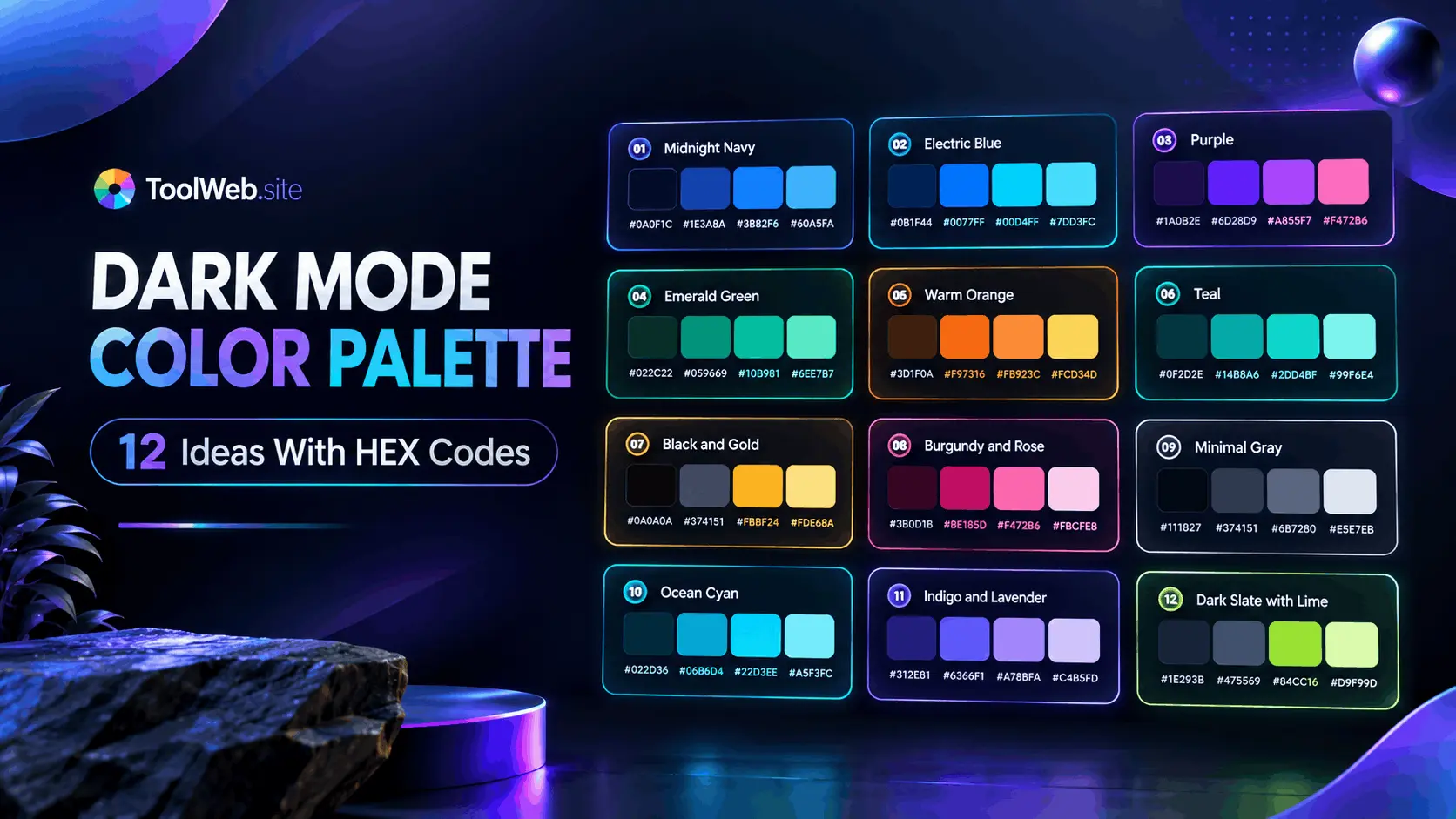
12 Dark Mode Color Palette Ideas With HEX Codes
The following palettes serve as starting points for various types of websites and applications. Each includes HEX values that you can explore, compare, and adapt to your project.
These combinations are design suggestions, not guarantees of universal accessibility. Always test key text and interface elements against their actual backgrounds.
1. Midnight Navy Palette
Best for: SaaS platforms, business websites, analytics dashboards, and productivity applications.
- Primary background:
#0B1120 - Secondary background:
#111B2E - Card surface:
#18243A - Primary text:
#F1F5F9 - Secondary text:
#A6B4C8 - Accent blue:
#60A5FA
Midnight Navy creates a professional look without relying on pure black. Blue undertones add depth to the interface, making it suitable for tech-focused products.
Use the dark shade for the overall canvas and slightly lighter shades for cards and navigation sections. The blue accent can help users identify links and key actions.
This palette works particularly well for dashboards featuring charts, data tables, account settings, and navigation menus.
2. Charcoal and Electric Blue Palette
Best for: Developer tools, technical platforms, modern business applications, and software landing pages.
- Primary background:
#121417 - Secondary background:
#1A1F24 - Card surface:
#242B33 - Primary text:
#F5F7FA - Secondary text:
#A8B0BA - Accent blue:
#3B82F6
The charcoal color provides a neutral base, allowing the electric blue to stand out as a visual accent.
When the blue color is reserved for key elements, this combination creates a clean and focused interface. Applying the accent color to every icon, heading, border, and button can make the design look cluttered or chaotic.
Keep most surfaces neutral and use the bright color where it provides useful visual guidance.
3. Purple and Midnight Palette
Best for: Creative platforms, design tools, AI products, and modern SaaS brands.
- Primary background:
#100B1D - Secondary background:
#1B1430 - Card surface:
#281D40 - Primary text:
#F8F5FF - Secondary text:
#B8A9D4 - Accent purple:
#A78BFA
Purple creates a unique personality within a dark interface without requiring a multitude of colors.
The darkest shade serves as the background, while purple surfaces help establish a hierarchy between page sections. Strategic use of a lighter purple accent can emphasize selected controls and primary actions.
This palette is particularly useful for products aiming to convey a creative, sophisticated, and tech-oriented impression.
4. Emerald and Forest Green Palette
Best for: Financial dashboards, sustainability-focused websites, analytics tools, and business applications.
- Primary background:
#071A14 - Secondary background:
#0D281F - Card surface:
#14382B - Primary text:
#ECFDF5 - Secondary text:
#A7C8B8 - Accent green:
#34D399
Forest green offers a calmer alternative to blue-based dark interfaces. Dark green shades can distinguish large sections without creating jarring visual contrasts. Emerald works well for positive indicators, active states, and selected controls.
However, avoid using green as the sole method of communicating success. Include a label or icon so users can understand the status without relying solely on color.
5. Warm Charcoal and Orange Palette
Best for: E-commerce websites, lifestyle brands, creative portfolios, and product-focused landing pages.
- Primary background:
#191614 - Secondary background:
#24201D - Card surface:
#302A25 - Primary text:
#FFF7ED - Secondary text:
#C4B5A5 - Accent orange:
#FB923C
Warm charcoal creates a softer look compared to cool, blue-toned interfaces. Orange adds energy and helps highlight calls to action.
This palette works well for product cards, featured collections, promotional sections, and creative portfolio layouts.
Use orange selectively. When every element is bright, the accent loses its ability to draw attention to key actions.
6. Teal and Dark Slate Palette
Best for: Analytics products, productivity tools, professional services, and data-heavy interfaces.
- Primary background:
#0B1418 - Secondary background:
#12232A - Card surface:
#19313A - Primary text:
#ECFEFF - Secondary text:
#A5C3CA - Teal accent:
#2DD4BF
Teal strikes a balance between the professional character of blue and the natural appearance of green.
This palette works well for interfaces featuring charts, filters, reports, and information panels. A distinct teal accent can help users identify active tabs and interactive elements.
For charts, use additional contrasting colors where necessary, rather than representing each data category with only slightly different shades of teal.
7. Black and Gold-Inspired Palette
Best for: Premium brands, luxury product websites, portfolios, and high-end service businesses.
- Primary background:
#141414 - Secondary background:
#1E1E1E - Card surface:
#292929 - Primary text:
#F7F4ED - Secondary text:
#B9B3A7 - Accent gold:
#E6C36A
When paired with neutral, dark surfaces, gold creates a premium visual impression.
Use it for selected details, important links, small highlighted sections, and limited call-to-action elements. Avoid using a bold gold color for large areas, as this can cause the rest of the interface to appear dull or disrupt the visual balance.
This color palette is particularly effective when the brand's typography, imagery, spacing, and overall design also reflect that same premium style.
8. Burgundy and Rose Palette
Best for: Fashion websites, beauty brands, creative portfolios, and editorial experiences.
- Primary background:
#1B1016 - Secondary background:
#28151F - Card surface:
#38202C - Primary text:
#FFF1F5 - Secondary text:
#D0AEBB - Accent rose:
#FB7185
The combination of burgundy and rose creates a warm and inviting dark interface.
The dark shades provide structure, while the rose hue offers a striking accent. This combination can be used for featured products, editorial highlights, selected controls, and branded elements.
For shopping interfaces, ensure product images and prices remain distinct and clear against the decorative colors.
9. Minimal Gray Dark Palette
Best for: Reading platforms, documentation websites, productivity apps, and minimalist business interfaces.
- Primary background:
#18181B - Secondary background:
#202024 - Card surface:
#29292F - Primary text:
#FAFAFA - Secondary text:
#B4B4BE - Accent gray:
#D4D4D8
A neutral palette is a practical choice when the content is more important than decorative colors. Various shades of gray establish a visual hierarchy without relying on multiple conflicting accent colors. This makes it easier to maintain the interface as new pages and features are added.
For links and primary actions, consider using a specific brand color if a neutral accent color does not clearly indicate interactivity.
10. Ocean Blue and Cyan Palette
Best for: Technology companies, cloud services, monitoring platforms, and modern web applications.
- Primary background:
#071521 - Secondary background:
#0D2336 - Card surface:
#15334B - Primary text:
#F0F9FF - Secondary text:
#A7C8DD - Accent cyan:
#22D3EE
This combination creates a cool, technical impression.
Cyan can provide a strong visual highlight against dark blue surfaces, especially for active controls and selected interface elements. It can also be useful for data visualization when paired with other distinct colors.
Carefully check small cyan text against the chosen background; a color that appears bright may still fail to meet formal contrast requirements.
11. Indigo and Lavender Palette
Best for: Design applications, educational platforms, creative SaaS products, and personal productivity tools.
- Primary background:
#111126 - Secondary background:
#1A1A38 - Card surface:
#25254A - Primary text:
#F5F3FF - Secondary text:
#B7B5D9 - Lavender accent:
#C4B5FD
Indigo provides a strong foundation, while lavender introduces a soft accent.
This palette is suitable for products requiring a modern look without relying on highly saturated colors throughout the interface.
Use lavender for selected elements, small illustrations, or highlighted controls. Maintain clear distinctions between background, surface, and text colors to ensure the interface does not lack visual definition.
12. Dark Slate and Lime Palette
Best for: Fitness applications, performance dashboards, developer products, and energetic brands.
- Primary background:
#111713 - Secondary background:
#1A241D - Card surface:
#26342A - Primary text:
#F4FCEB - Secondary text:
#B9C9B1 - Lime accent:
#A3E635
Lime creates a vibrant contrast against the muted green-gray surfaces.
This palette works best when the accent color is used sparingly for key actions, active states, progress indicators, and selected elements.
For charts and status indicators, pair colors with labels or shapes so users can interpret information even if they cannot distinguish between the colors themselves.
How to Choose the Right Dark Mode Color Palette
The best palette depends on your product, brand identity, content, and users. A combination that works well for a gaming platform might not suit a financial dashboard or a reading-focused website.
Consider these factors before finalizing your colors.
1. Start With Your Website's Purpose
Identify the primary function of your interface.
A business website might benefit from a restrained palette featuring a distinct accent color. A creative platform could use purple or indigo to convey personality. An analytical dashboard might require neutral surfaces and a variety of distinct chart colors.
Choose colors that support the experience you want to create, rather than simply picking a palette because it looks attractive in a sample image.
2. Avoid Using Pure Black Everywhere
Pure black can work in specific contexts, but using it for every background and surface can make the interface feel flat.
Dark gray, charcoal, navy, and other near-black shades offer alternatives that help distinguish different sections of the page.
For example, a main background might use a deep neutral shade, while cards use a slightly lighter surface. This creates separation without the need for thick borders around every component.
The goal is not to avoid black entirely; it is to use background shades intentionally.
3. Establish a Clear Text Hierarchy
A dark interface requires a legible distinction between primary text, secondary text, and decorative details.
Headings and key information should be easy to identify. Supporting descriptions can use a less prominent shade, provided they remain readable. Placeholder text and disabled labels require special attention, as they become difficult to see if the contrast is too low.
Do not reduce text contrast simply to achieve a subtle visual appearance.
4. Select a Primary Accent Color
Choose an accent color that complements your base background and brand identity.
Blue, teal, purple, green, orange, and rose are common starting points, but no single accent color works for every product.
Use your accent color consistently for similar actions. If blue indicates primary buttons on one page, avoid assigning an unrelated color to the same type of action without a clear reason.
A consistent color system makes the interface more predictable.
5. Use Surface Colors to Create Depth
Dark mode does not have to be visually flat.
A combination of background shades, card surfaces, borders, and subtle highlights can establish depth without adding unnecessary decoration.
For example, a dashboard might use one color for the page background, another for cards, and a subtle border to separate panels. This is generally easier to maintain than giving every card a completely different background color.
6. Check Colors in Their Actual Context
A palette might look good as a row of color swatches but behave differently when applied to the actual interface.
Test it with headings, paragraphs, buttons, links, form fields, navigation menus, and error messages.
Pay special attention to small text and interactive controls. Bright colors can appear more prominent when isolated than when surrounded by other interface elements.
A useful palette should remain consistent across the entire website, not just on the homepage.
Dark Mode Accessibility and Contrast
Accessibility is a crucial aspect of dark interface design. A visually appealing color palette is not necessarily readable for every user.
The Web Content Accessibility Guidelines (WCAG) 2.2 provide measurable contrast standards for text and other interface elements.
For WCAG 2.2 Level AA, the general minimum contrast ratios are:
- 4.5:1 for normal text.
- 3:1 for large text.
- 3:1 for visual information required to identify user interface components and states, where applicable standards require it.
Large text generally refers to at least 18-point regular text or 14-point bold text. Other standards and exceptions may apply depending on the content and context.
These requirements do not guarantee that every user will find the design comfortable; however, they provide a useful foundation for assessing readability and accessibility.
Why Is Testing Dark Colors Necessary?
Two colors may appear distinctly different yet still lack sufficient contrast for small text.
For instance, medium-gray text on a slightly lighter charcoal background might look stylish for a large headline but become difficult to read in a long paragraph.
Similarly, a bright accent color might work well for a large button but prove unsuitable for small text against the same background.
Evaluate each foreground and background combination individually. Do not assume a palette passes the contrast check simply because it features white text against a dark background.
How to Check Your Color Combinations
You can use a contrast-checking tool to evaluate the relationship between the foreground color and its background.
Here is a simple workflow:
- Select the text or interface color.
- Select the actual background color.
- Enter the values for both colors into the contrast checker.
- Review the contrast ratio and the applicable accessibility results.
- If the combination does not meet the required standards, adjust one or both colors.
- Repeat the process for other key combinations.
To find additional colors, use the ToolWeb.site color chart to explore color values and the RGB-to-HEX converter to convert RGB values into hexadecimal format. You can also use the Image Color Picker to identify colors in images when planning a palette around existing visual assets.
For more detail about contrast requirements, consult the W3C guidance on Contrast (Minimum) and Non-text Contrast.
Always verify the final foreground and background pairing rather than relying solely on visual appearance.
Common Dark Mode Color Palette Mistakes
Even attractive colors can result in a poor user experience if used without a consistent system.
Using Pure Black for Every Element
When backgrounds, cards, navigation elements, and panels all share the same color, it can be difficult to perceive the page structure.
Use carefully selected tonal variations to establish hierarchy. The differences do not need to be dramatic; even subtle distinctions can help.
Using Too Many Accent Colors
A palette consisting of multiple unrelated, bright colors can make the interface feel disjointed.
Start with a primary accent color and introduce additional colors only when they serve a clear purpose, such as representing different chart categories or status messages.
Making Secondary Text Too Faint
Low-contrast secondary text is a common issue in dark mode.
Details, helper text, timestamps, and form instructions may be less prominent than headings, but users still need to be able to read them.
Test these elements at their actual size and against their intended backgrounds.
Overlooking Links and Focus States
Links, selected tabs, keyboard focus indicators, and active controls should be easy to identify.
Do not rely solely on subtle color changes that users might miss. Use clear visual cues that make interactive elements easily recognizable.
Using Color as the Sole Signal
Color should not be the only way to communicate success, failure, warnings, or selected states.
Combine it with meaningful text, icons, labels, or other visual cues. This assists users who have difficulty distinguishing between specific colors and makes the interface clearer overall.
Forgetting About Images and Charts
Images, illustrations, charts, and embedded content can look different against dark surfaces compared with light ones.
Review the entire page, including media and data visualizations. Ensure that labels remain readable and that chart colors are distinguishable from the background and from each other.
Skipping Real-World Testing
A color palette that looks great on a large monitor might not feel the same on a mobile screen.
Check key pages across various viewport sizes and with realistic content. Test forms, buttons, long paragraphs, and navigation states before considering the design complete.
Dark Mode Color Palettes for Different Websites
The right palette also depends on the type of website you are building.
Business and Corporate Websites
Business websites generally benefit from neutral backgrounds and a restrained tone.
Midnight navy, charcoal, and slate can provide a professional foundation. Blue tones can help emphasize links and primary actions.
Keep service descriptions, contact information, and navigation easy to read. Avoid making every section visually dramatic when visitors primarily need clear information.
SaaS Platforms and Admin Dashboards
SaaS products often feature tables, forms, charts, filters, notifications, and account settings.
A palette utilizing multiple related dark shades can help distinguish between these interface areas. A consistent accent color can identify selected navigation items and primary actions.
Ensure status colors remain meaningful throughout the product; for example, the same visual language should be used consistently for success states, warnings, and errors.
E-commerce Websites
An e-commerce interface requires a balance between product imagery, navigation, pricing, product details, and purchasing actions.
A muted warm tone can work well for lifestyle or premium products. Navy and blue hues may suit technology products, while burgundy and rose tones can complement certain fashion or beauty brands.
Always check product images against the background. Ensure that pricing, product options, shipping details, and purchase buttons are easily identifiable.
Portfolio and Creative Websites
Creative portfolios offer greater flexibility in the choice of accent colors.
Purple, indigo, teal, and warm orange can help establish a distinctive identity. However, the color palette should support the work being showcased rather than compete with it.
Use strong accent colors and neutral surfaces to guide attention and give projects prominence.
Blogs and Reading Platforms
Reading-focused websites need to prioritize long-form text.
Choose a background that suits the content and ensure that paragraph text remains readable over extended periods. Use a clear hierarchy for headings, body text, captions, and links.
Avoid making supporting information so faint that it becomes difficult to read.
How to Create a Consistent Dark Mode Color System
It is easier to manage a reusable color system than to deal with sets of unrelated colors selected individually for each page.
Start by defining the roles your interface requires:
- Background role: Main page canvas.
- Surface role: Cards, panels, menus, and dialogs.
- Text role: Primary and secondary content.
- Accent role: Key actions and interactive states.
- Border role: Separation between interface elements.
- Status role: Success, warning, error, and informational messages.
Assign an appropriate color to each role, then reuse these assignments consistently.
Next, review all key interface states. A button might have default, hover, active, disabled, and focus states. Form fields may require normal, selected, error, and completed states.
The same principle applies to navigation menus, tabs, notifications, and cards.
Finally, test the color system with realistic content and check key contrast combinations. Make adjustments based on actual usage rather than deciding on colors solely from a palette preview.
A consistent system also simplifies future redesigns, as individual color roles can be updated without having to revisit every element from scratch.
Frequently Asked Questions
1. What Is the Best Dark Mode Color Palette?
There is no single best palette for every website. Midnight navy and blue work well for many technology products, charcoal and gray suit minimalist interfaces, and purple or teal can add personality to creative applications. The best choice depends on the brand, the content, and readability requirements.
2. Which HEX Colors Are Good for Dark Mode?
Dark charcoal, midnight navy, and slate are useful starting points. Examples include #121417, #0B1120, and #18181B. Pair the chosen background with appropriate text and surface colors, then test the actual combination rather than relying solely on HEX values.
3. Should Dark Mode Use Pure Black or Dark Gray?
Both can be appropriate. Pure black is useful in certain designs, while dark gray often offers greater flexibility for distinguishing between backgrounds and surfaces. Choose the approach that suits the product and establishes a clear, consistent visual hierarchy.
4. What Is a Good Accent Color for a Dark-Themed Website?
Blue, teal, purple, green, orange, and rose can all work well. Select an accent color that complements the background and aligns with the brand. Test the accent color against its intended background, especially when using it for text or key interface elements.
5. How Many Colors Should Be in a Dark Mode Palette?
Start with a small set of functional color roles: a primary background, one or more surface colors, primary and secondary text colors, an accent color, and any necessary border or status colors. Additional colors should serve a clear purpose rather than being added merely for decoration.
6. How Can I Ensure Text Readability in Dark Mode?
Select text and background colors with sufficient contrast, use a clear text hierarchy, and avoid dimming secondary information too much. Carefully check small text and evaluate key color combinations against relevant WCAG contrast standards.
7. Are Dark Mode Color Palettes Better for the Eyes?
Not universally. Some users prefer a dark interface in low-light environments, while others find light interfaces more comfortable for reading. Comfort can depend on lighting, screen settings, content, and individual preferences. Good design should prioritize readability and provide an appropriate experience for the audience.
8. Which Dark Mode Palette Is Best for a SaaS Dashboard?
Midnight navy, charcoal and blue, or dark slate and teal are useful starting points. These combinations can provide clear separation between panels while reserving bright colors for key actions and status indicators. The final choice should also account for charts, tables, forms, and accessibility.
9. How Can I Check if My Dark Mode Colors Are Accessible?
Evaluate foreground and background combinations using a contrast checker. For WCAG 2.2 Level AA, normal text typically requires a contrast ratio of at least 4.5:1, while large text generally requires at least 3:1. Applicable non-text interface elements have their own standards.
10. Can I Use the Same Palette for Desktop and Mobile?
Yes, a shared color system can help maintain a consistent brand across all devices. However, you should test each layout separately, as text size, component arrangement, and available screen space can affect readability and usability.
11. How Do I Choose HEX Codes for a Dark-Themed Website?
Start with the desired background shade, then select appropriate surface colors, readable text colors, and an accent color that aligns with your brand. Use a color chart or color picker to explore values, and test key foreground-background combinations before finalizing the palette.
12. Can I Use These Dark Mode Palettes for Commercial Websites?
Yes, these HEX combinations are provided as design starting points that you can adapt for business websites, e-commerce stores, dashboards, portfolios, and other digital products. You should still test them within your actual interface and ensure the complete design meets your project's accessibility and usability requirements.
Final Thoughts
A successful dark mode color palette is built around more than just an attractive dark background. It requires a clear visual hierarchy, readable text, consistent accent colors, and sufficient separation between interface elements to help users navigate and understand the page.
Midnight navy and blue tones can suit technology products, charcoal and gray can support minimalist layouts, and purple, teal, orange, or rose hues can help establish a distinctive brand identity. Start with a color palette that aligns with your website's purpose, assign a clear role to each color, and test the combinations within actual interface components. Pay special attention to text contrast, links, buttons, form fields, and status messages.
Use the 12 palettes in this guide as starting points rather than rigid rules. Adjust them to suit your brand and verify their readability before using them in production.
The best dark mode design is one that looks consistent, communicates clearly, and remains usable across all the pages and devices your audience relies on.