Tint vs Shade vs Tone | What’s the Difference?
Have you ever found a color you liked but wished it were a little lighter, darker, or less intense? Maybe you wanted a softer blue for a website background or a deeper green for a logo. These small adjustments can make a big difference in how a color looks and feels.
In color theory, three terms help explain these changes: tint, shade, and tone.
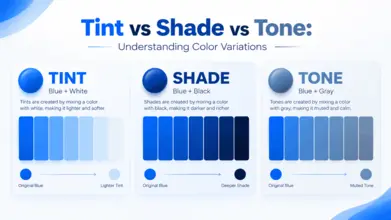
Although people sometimes use these words interchangeably, they describe different ways of modifying a color. A tint is created by adding white, a shade by adding black, and a tone by adding gray. Understanding the difference makes it easier to choose colors for websites, illustrations, branding, interior design, and other creative projects.
In this guide, you will learn what tints, shades, and tones are, how they differ, and how to use them in practical designs. You will also find color examples with HEX codes to help you experiment with your own palettes.
What Is a Tint in Color?
A tint is created when white is added to a color. This makes the original color lighter while generally keeping its basic hue recognizable.
For example, adding white to blue produces lighter blue variations. Adding more white creates progressively paler versions of the same color.
Tints are often associated with soft, fresh, gentle, or airy designs. They can be useful when a full-strength color feels too intense for a background or supporting element.
Consider a website that uses a strong blue as its main brand color. The same blue might look too bold across a large section of the page. A lighter tint can provide a more comfortable background while allowing the original blue to remain available for buttons, links, or other important elements.
Examples of Color Tints
Here are some blue variations that illustrate the idea of moving from a strong color toward a lighter appearance:
- Original blue:
#2563EB - Light blue:
#60A5FA - Pale blue:
#BFDBFE - Very light blue:
#DBEAFE
These HEX values represent different blue colors, not exact mathematical white mixtures of the first color. They are practical examples of how lighter blue variations can be used in design.
When Should You Use Tints?
Tints can be useful when you want a design to feel lighter without abandoning its main color.
Common uses include:
- Website backgrounds and content cards
- Soft illustrations and pastel artwork
- Product packaging
- Invitations and social media graphics
- Supporting colors in a brand identity
- Subtle highlights behind headings or icons
Tints can also help create visual hierarchy. For example, a very light blue can form the background of a section, while a deeper blue is used for its heading.
However, lighter colors are not automatically suitable for text. Pale colors often have low contrast against white backgrounds, so check readability before using them for important content.
What Is a Shade in Color?
A shade is created by adding black to a color. This makes the original color darker.
For example, adding black to green creates deeper green variations. As more black is introduced, the color becomes progressively darker and may eventually appear close to black.
Shades can add depth, contrast, and visual weight to a design. They are often useful when a project needs stronger colors without introducing an entirely different hue.
Imagine a green brand color used for buttons and icons. A darker shade of that green could work well for a hover state, a heading, or a more prominent section of the website.
Examples of Color Shades
The following HEX values illustrate a range of green colors, from a strong green to deeper variations:
- Original green:
#16A34A - Deep green:
#15803D - Dark green:
#166534 - Very dark green:
#14532D
These are useful examples of darker green variations rather than exact black-added mixtures of one original color.
When Should You Use Shades?
Shades are useful when you want a color to feel deeper, stronger, or more prominent.
You might use them for:
- Headings and important text
- Button hover states
- Borders and icons
- Darker sections within a website
- Illustrations that need depth
- Brand palettes that require stronger supporting colors
Shades can also help make a design feel more structured. A lighter color can be used for a surface, while a darker variation creates separation or emphasis.
Keep in mind that very dark colors can lose their recognizable hue. If you add too much black, a dark blue or green may begin to look almost black.
What Is Tone in Color Theory?
A tone is created by adding gray to a color. Unlike a tint, which becomes lighter through the addition of white, or a shade, which becomes darker through the addition of black, a tone generally makes a color look more muted.
For example, a bright red may appear less intense when gray is added. The result can look softer, more restrained, or more subtle.
Tones are especially useful when a pure color feels too vivid for the design. They help create palettes that look balanced without relying entirely on pale tints or very dark shades.
Examples of Color Tones
Here are some practical examples of muted colors:
- Strong blue:
#2563EB - Muted blue:
#647FA8 - Strong green:
#16A34A - Muted green:
#6F927A - Strong red:
#DC2626 - Muted red:
#B87575
These HEX values illustrate muted color appearances. They are not exact results of mixing the original colors with a specific quantity of gray.
When Should You Use Tones?
Tones can be helpful when a design needs color without excessive brightness.
Common uses include:
- Professional website interfaces
- Backgrounds for content-heavy pages
- Brand palettes with a restrained appearance
- Editorial graphics
- Product packaging
- Muted illustrations and decorative elements
For example, a vivid orange may attract too much attention when used across a large section of a business website. A muted orange can provide warmth while allowing the main content to remain the focus.
Tones are also useful when combining multiple colors. Muted colors can sometimes sit together more comfortably than several highly saturated colors, although the result depends on their hues and how they are used.
Tint vs Shade vs Tone: Key Differences
The easiest way to understand the difference is to compare what is added to the original color and how the result changes.
| Feature | Tint | Shade | Tone |
|---|---|---|---|
| What is added? | White | Black | Gray |
| Main effect | Makes the color lighter | Makes the color darker | Usually makes the color more muted |
| Common appearance | Pale or soft | Deep or dark | Subtle or less vivid |
| Typical use | Light backgrounds | Strong emphasis and depth | Balanced, restrained palettes |
| Example | Pale blue | Deep blue | Muted blue |
The main distinction is simple: tint means adding white, shade means adding black, and tone means adding gray.
One detail is worth remembering. In everyday digital design, people often describe any lighter, darker, or less vivid variation as a tint, shade, or tone without physically mixing pigments. The terms are still useful, but the exact result depends on the color model and the method used to create the variation.
For additional background on digital color values, see MDN's guide to CSS colors.
Tint vs Shade vs Tone Examples With HEX Codes
Let's look at how these concepts can be applied to a practical color palette.
Suppose you are designing a website and choose blue as your primary color. You may need lighter colors for backgrounds, darker colors for emphasis, and muted colors for secondary elements.
Here is an example set:
- Original blue:
#2563EB - Lighter blue example:
#BFDBFE - Darker blue example:
#1E40AF - Muted blue example:
#647FA8
These examples demonstrate three different visual directions:
- The lighter blue can work as a soft background or highlight.
- The darker blue can create emphasis and depth.
- The muted blue can support the palette without appearing as vivid as the original.
The HEX values are practical design choices, not exact white, black, and gray mixtures calculated from the original blue.
You can explore more colors with the ToolWeb Color Chart and inspect individual HEX values using the Color Picker.
How to Create Tints, Shades, and Tones for Your Design
You do not need advanced design software to begin experimenting with tints, shades, and tones. A simple color tool and a clear idea of the result you want are enough to get started.
Step 1: Choose Your Base Color
Start with one color that suits your project.
For a website, this might be your main brand color. For an illustration, it could be the dominant color in the subject. For a presentation, choose a color that supports the message without distracting from the content.
If you already know the HEX code, keep it available so you can compare variations consistently.
Step 2: Decide What the Color Needs
Ask yourself what you want to change.
If the color feels too strong for a large background, try a tint. If it needs more depth or emphasis, try a shade. If it looks too vivid, explore a tone.
This simple decision can help you avoid adding random colors to the palette.
Step 3: Create Several Variations
Make a few versions rather than choosing the first result.
For a tint, gradually move toward white. For a shade, move toward black. For a tone, reduce the color's intensity by introducing gray.
Compare the variations side by side. Small changes can look very different when placed in a real design.
Step 4: Assign Each Color a Role
A useful palette has a purpose for each color.
For example, you could use a strong blue for primary buttons, a light blue for backgrounds, a deep blue for selected headings, and a muted blue for secondary information.
This approach makes the palette easier to maintain across pages and components.
Step 5: Test the Colors in Context
A color that looks good as a small swatch may not work as a full-page background.
Apply the variations to your actual design. Check whether headings stand out, buttons are easy to identify, and the layout remains visually comfortable.
For websites, always test text contrast and interactive states before publishing.
Step 6: Save the HEX Codes
Once you are happy with your choices, save the HEX codes in your design notes or brand guidelines.
This makes it easier to reuse the same colors across website pages, graphics, presentations, and other brand materials.
How Tints, Shades, and Tones Are Used in Website Design
Website designers often need several variations of the same color to create a consistent interface.
Using only one color everywhere can make the layout feel flat. Adding unrelated colors whenever something needs emphasis can make it feel inconsistent.
Tints, shades, and tones offer another option: they allow you to build variety around a core color.
Using Tints for Backgrounds
Light tints can help separate sections without introducing strong visual distractions.
For example, a pale blue background can distinguish an information card from the main page while preserving a connection to the site's primary blue.
Make sure the text placed on the background remains readable.
Using Shades for Buttons and Headings
Darker shades can give headings, icons, and selected interface elements a stronger appearance.
You might use a medium blue for a standard button and a deeper blue for its hover state. This can make the interaction feel more noticeable, provided the state is also clear to users who do not rely on color alone.
Using Tones for Secondary Elements
Muted tones can support a layout without competing with its main actions.
They can work for decorative elements, secondary graphics, or selected backgrounds. However, avoid using muted colors for essential text if they produce insufficient contrast.
Keeping the Palette Consistent
Instead of choosing each color separately, create a small group of related variations and give them consistent roles.
- Primary color: main buttons and brand elements
- Tint: subtle backgrounds
- Shade: emphasis and deeper states
- Tone: supporting elements
The exact arrangement will depend on your interface, but defining roles makes the design easier to update.
Common Mistakes When Using Tints, Shades, and Tones
Understanding the definitions is only the beginning. How you apply the colors matters just as much.
1. Making Every Tint Too Pale
Adding a large amount of white can produce a color that barely stands out from the background.
This may be fine for decoration, but it can make important elements difficult to notice. Check how the color looks in the actual layout.
2. Making Shades Too Dark
Adding too much black can hide the character of the original color.
For example, a dark green may eventually look almost black, which may not be the effect you intended. Create several variations and compare them before choosing one.
3. Confusing Muted Colors With Simply Darker Colors
A muted tone is not necessarily darker than the original color. Its defining feature is the reduction in vividness through the addition of gray in traditional color theory.
A color can be muted and still look relatively light.
4. Using Too Many Variations
Creating dozens of similar colors can make a palette difficult to manage.
Start with a small set of purposeful variations. Add more only when the design genuinely needs them.
5. Ignoring Accessibility
A color can look attractive and still be difficult to read against a particular background.
Check text contrast, button labels, links, and other important interface elements. Do not rely on color alone to communicate information, such as errors or successful actions.
Read the W3C WCAG contrast minimum guidance to understand contrast requirements for accessible text.
6. Choosing Colors Without Testing Them
Color variations may look different depending on their size, surrounding colors, screen settings, and lighting.
Always preview your palette in context rather than relying only on the appearance of isolated swatches.
Frequently Asked Questions
1. What is the difference between a tint, shade, and tone?
A tint is made by adding white to a color, a shade by adding black, and a tone by adding gray. Tints generally appear lighter, shades darker, and tones more muted.
2. Is pink a tint of red?
Pink is commonly understood as a tint of red because it is lighter than many standard red colors. However, the exact relationship depends on the particular pink and red being compared.
3. Is navy blue a shade of blue?
Navy blue is a dark blue color, so it is commonly described as a shade of blue in everyday design language. The term does not necessarily mean it was physically created by adding black to one specific blue pigment.
4. Is gray a tone?
Gray itself is generally considered a neutral color. In traditional color theory, a tone is created by adding gray to another color, such as blue or green.
5. Can a tint, shade, and tone be used in the same palette?
Yes. Using all three can create a useful range of variations around a base color. Tints can provide lighter surfaces, shades can add depth, and tones can offer muted alternatives.
6. Which is better for website backgrounds: tints or tones?
Both can work. Tints often provide a light, clean background, while tones can create a more muted appearance. Choose the option that fits your design and provides enough contrast for the content.
7. How do I find HEX codes for tints and shades?
You can use a color picker or design tool to explore variations and copy their HEX values. Compare the colors visually and check their contrast before using them in your website.
Try the ToolWeb Color Picker to inspect color values.
8. Do tints, shades, and tones affect accessibility?
They can. Changing a color's lightness or intensity can affect how easily it can be distinguished from another color. Always check text and background contrast instead of assuming that a lighter or darker variation will automatically be accessible.
Final Thoughts
Tint, shade, and tone may sound like similar terms, but they describe different ways to modify a color. A tint adds white, a shade adds black, and a tone adds gray.
Understanding these differences gives you more control when choosing colors for websites, logos, illustrations, and other creative projects. Instead of searching for an entirely new color every time something needs to look lighter, darker, or less vivid, you can build a more consistent palette around your original choice.
Start with a color that suits your project, create a few useful variations, and test them in the layout where they will actually appear. Keep readability and contrast in mind, and save the HEX codes for future use.
If you want to experiment with your own color variations, explore the ToolWeb Color Picker or browse the Color Chart to find colors for your next design.
References and Further Reading
- MDN Web Docs: CSS Colors — Background information on color values used in web development.
- W3C: Understanding Contrast Minimum — Guidance on text contrast and accessibility.